Working with your agent
What to ask, how to point at a take, and how to see what your agent is doing.
What to ask
Talk to your agent the way you would anyway, in the Agent panel beside the canvas or in your own terminal. Mention the playground, or Sneak Peek, when you want the ideas there instead of in your code.
› Prototype a few takes on the pricing card in the playground.
› Try three layouts for the empty state, each on phone and desktop.
› Open the playground.
Your agent writes each take as a variant, using your project’s own components and styles, and you see it the moment it saves.
Point at a take
Click a frame, then talk about it. Your agent can see what you selected, so there is no need to name it.
› Make this one tighter.
› Keep the selected one and drop the rest.
To point at one element inside a frame, or to leave a note on it, see Inspect and notes.
Seeing what your agent does
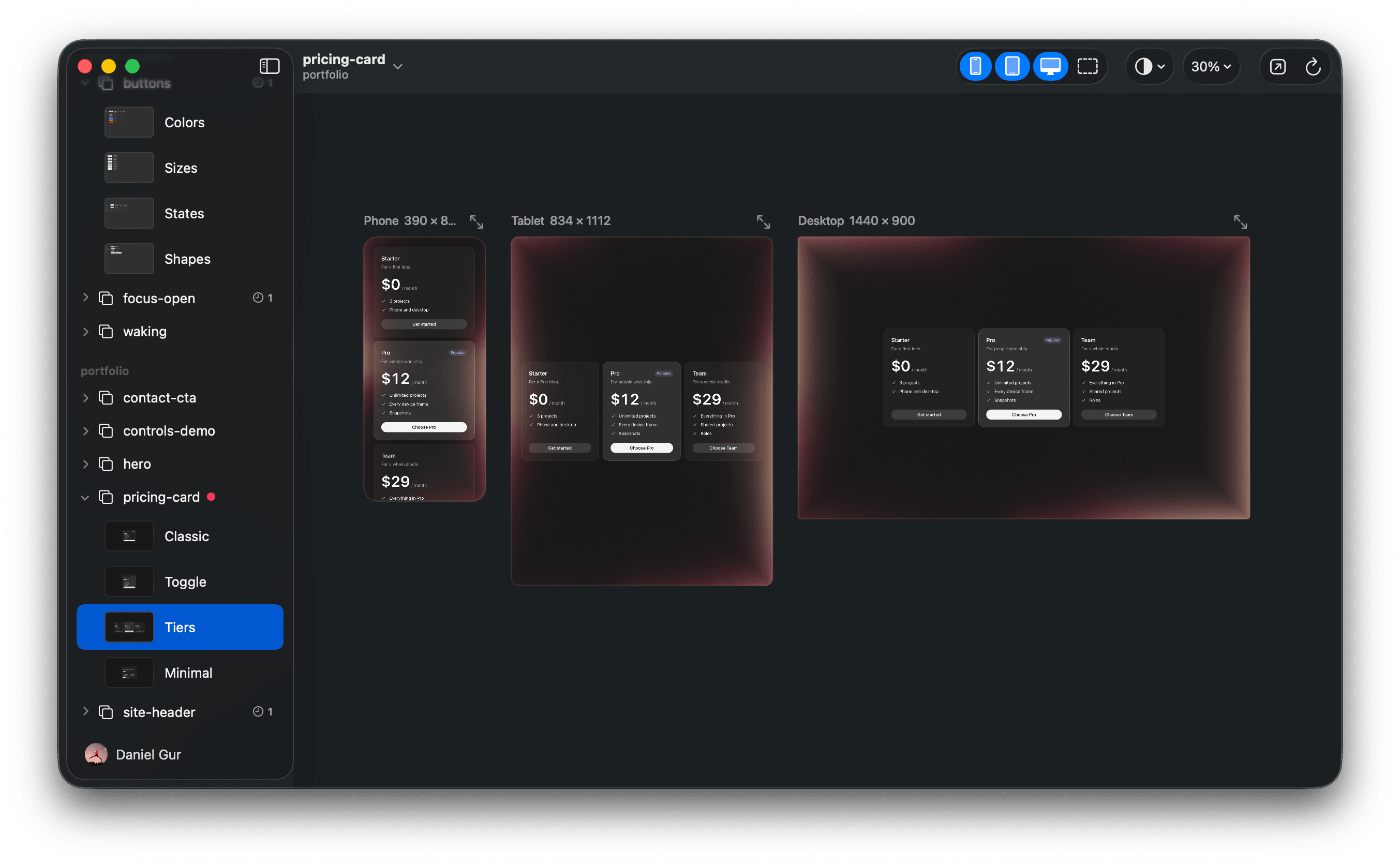
- A light in the frame
- A soft light in your agent’s color moves inside the frame it is reading or editing.
- A dot in the sidebar
- The prototype your agent is working in gets a dot in the same color. Hover it to see which agent.
- The app follows along
- When your agent starts on a take or wants to show you one, Sneak Peek comes forward and moves the canvas to it, switching to its project, even from Home.
Your agent looks too
Your agent takes its own pictures of the frames to check its work, straight from the app, including the values you tuned in the inspector. When the app is closed, it uses Google Chrome instead.
From prototype to product
When you have picked a winner, ask your agent to build it into your repo. Until then, your project stays as it was.
› Build the Editorial take into the landing page.