Inspect and notes
Point at one element, and leave your agent a note on it.
Inspect an element
Click Inspect in the toolbar, choose Prototype › Inspect Elements, or press ⌥⌘C. Move over a frame, and the element under the pointer is outlined. Click it to pick it.
Your agent sees what you picked: the element, the line of code that wrote it, and the components it sits in. So “this” now means that element.
› Make this button quieter.
Right-click an element and choose Show Details for its selector, size and computed styles.
Leave a note
A note is a request about one element that waits for your agent, so you can leave several while you look around. On the canvas, a box for it opens as you pick an element. Write what should change, and press ↩. Right-click an element for Add Note… any time.
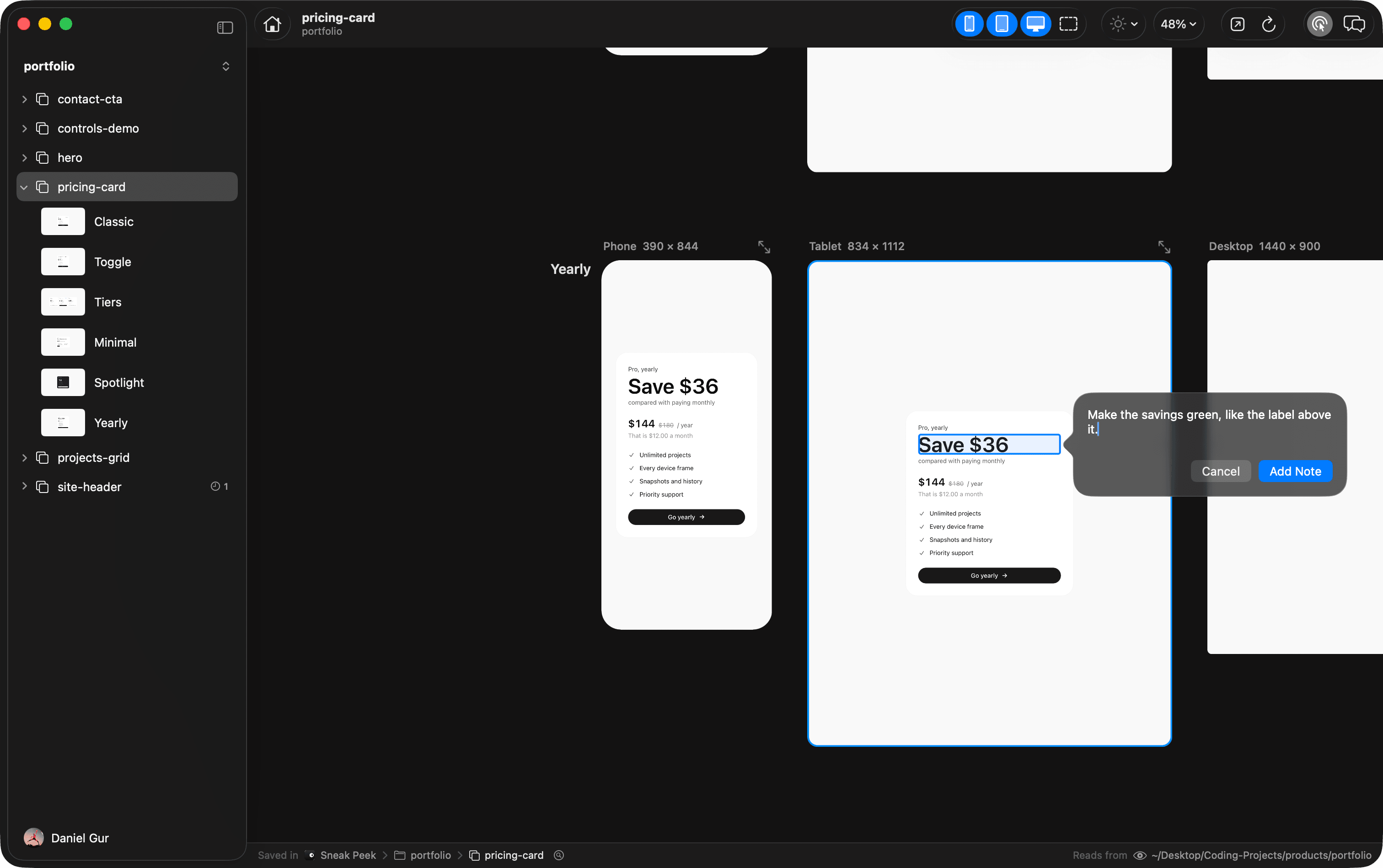
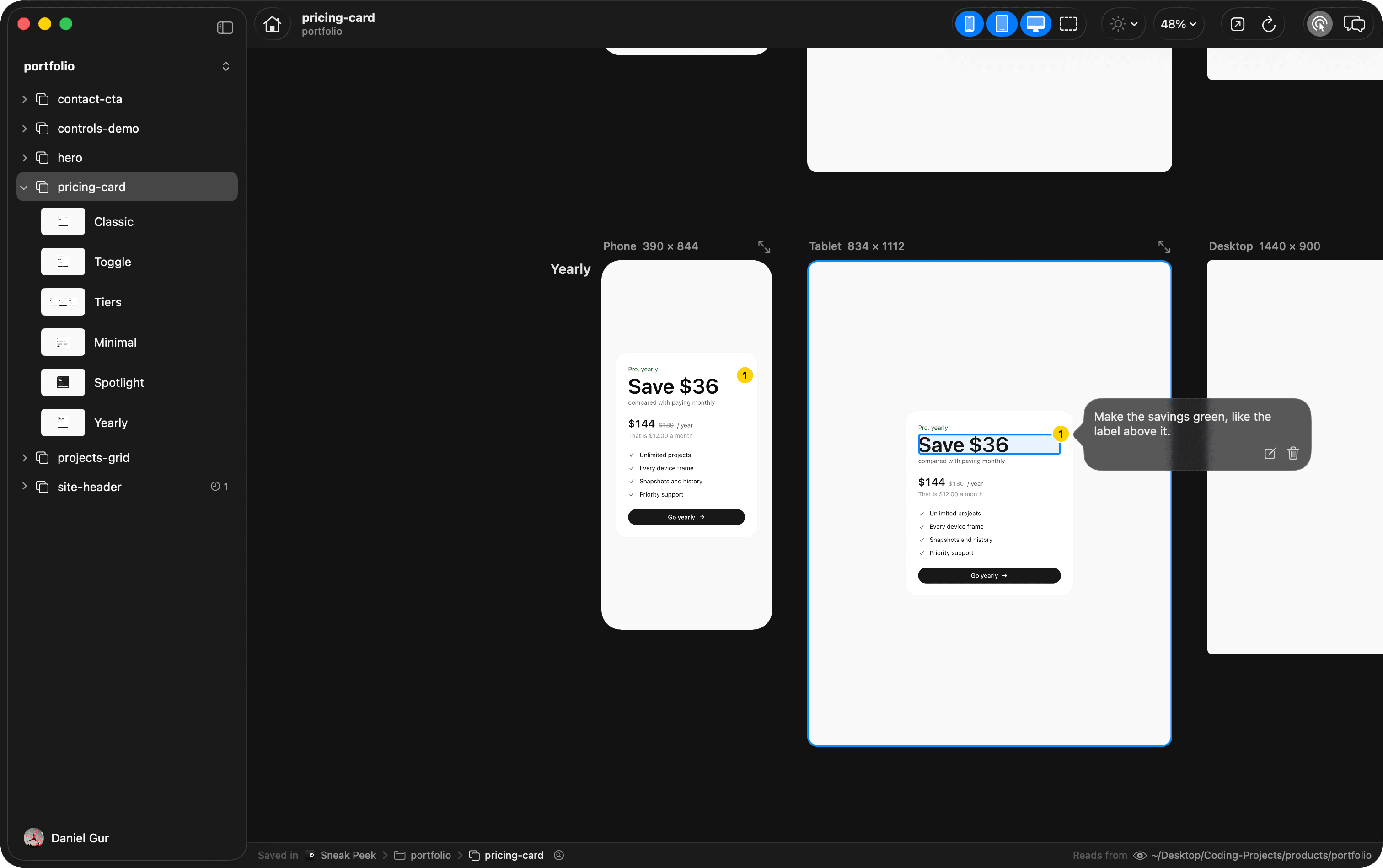
- A numbered pin
- Each note gets a pin on its element, on every frame. The pin follows the element as the code changes.
- Clicking away
- Keeps what you wrote. Only Cancel throws it away.
- Change your mind
- Click a pin for Edit Note… and Delete Note.
How your agent gets them
- Claude Code
- Gets your new notes with your next message.
- Codex
- Gets them when it next reads your notes, so ask it to.
› Handle my notes.
When your agent has made the change, it marks the note handled and its pin goes away. If you edit a note your agent already has, it gets the new words.
In a preview
A preview has two modes. Interact uses the page as a visitor would. Select, the same ⌥⌘C, picks elements; hold ⌘ to switch for a moment. What you selected stays selected when you go back to interacting, so you can tune its controls while you use the page.
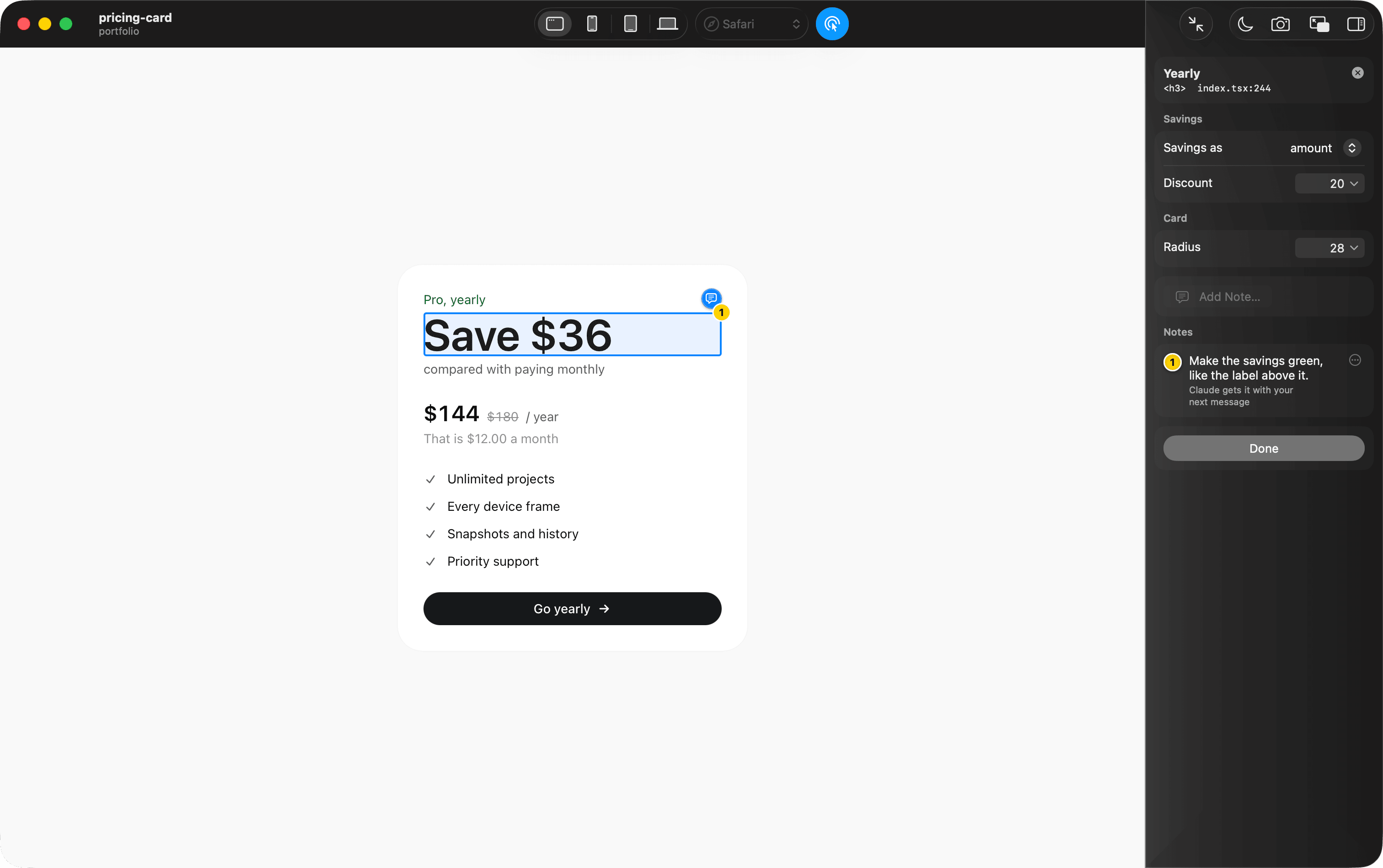
The inspector beside the page shows the selected element, its controls, Add Note…, and the prototype’s notes. The note button on the corner of the outline, Prototype › Add Note…, or ⇧⌘K, adds one too. Done leaves Select and copies a prompt about your notes and tuned values, to paste to your agent.