The canvas
Home, projects, prototypes and variants, each on phone, tablet and desktop.
Home
Home has a card for every project, with a picture of one of its prototypes. Click a card to open the project. The last card, Add a project, brings another one in with your agent. Until you have a project, Home is the welcome screen. The Tutorial button in the toolbar shows again how to bring one in.
- View › Home (⇧⌘H)
- Back to Home from any project, as does the Home button in the toolbar. View › Project opens another one directly.
- Right-click a card
- Reveal Repo in Finder, or Move to Trash. The project's prototypes and snapshots go to the Trash too; the repo itself stays as it is.
Devices
The device buttons in the toolbar choose which frames every variant shows. Turn on as many as you like; the last one stays on. The choice applies to every prototype, and is also under View.
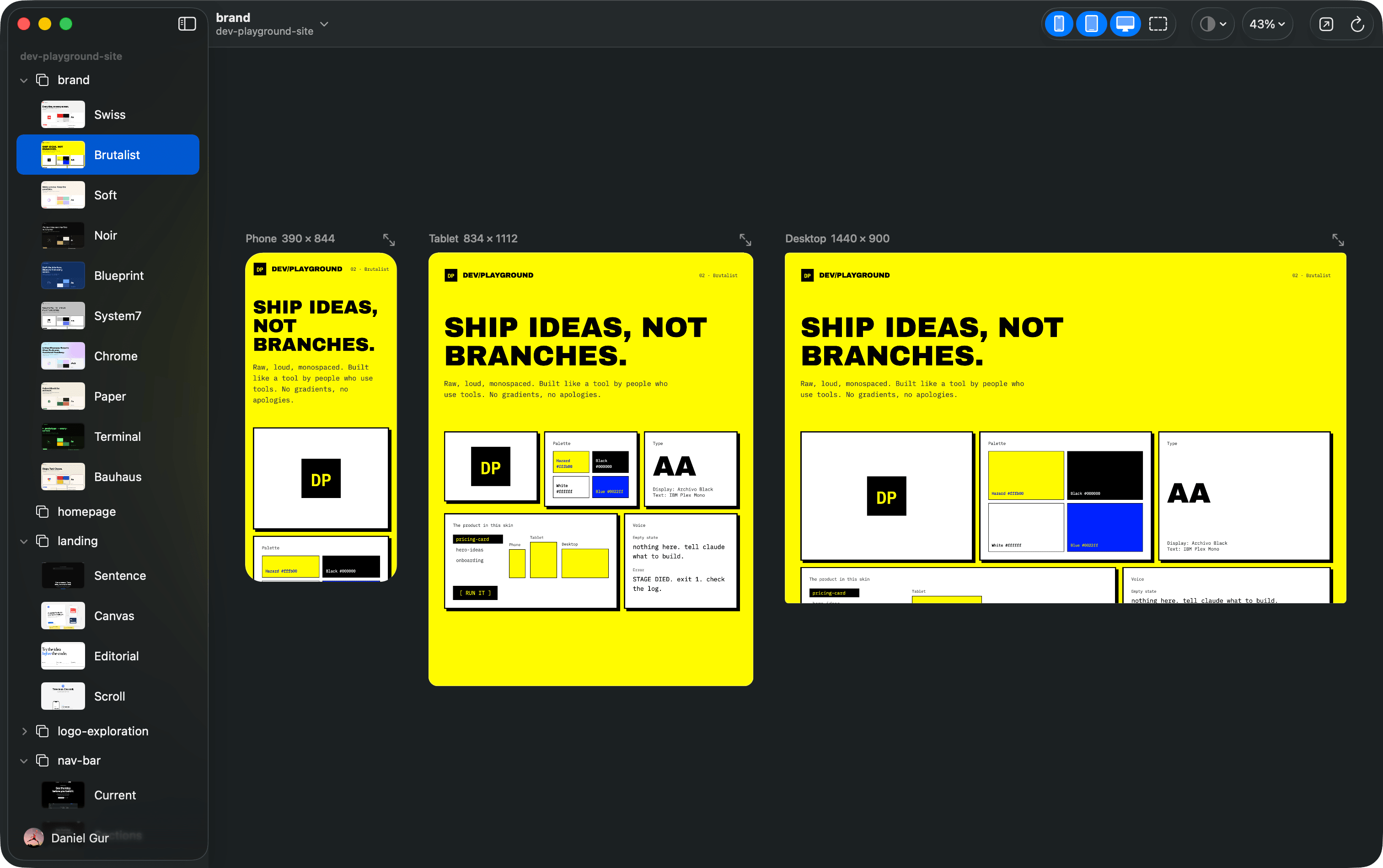
| Phone | 390 × 844 |
|---|---|
| Tablet | 834 × 1112 |
| Desktop | 1440 × 900 |
| Free-form | Any size, starting at 1024 × 768 |
A free-form frame is the one to resize: drag its corner handle and the page reflows as you go. The size is remembered.
Moving around
- Pan
- Scroll, drag the empty canvas, or hold Space and drag, which works over pages too.
- Zoom
- Pinch, or scroll while holding ⌘. ⌘9 fits everything, ⌘0 is 100%, ⌘+ and ⌘− step in and out. The percentage in the toolbar has the same choices.
- Zoom to one frame
- Double-click the frame’s label, or right-click the frame and choose Zoom to Frame.
- Use a page
- Click a frame to focus it, and scrolling goes to the page instead of the canvas. Esc, or a click on the canvas, gives scrolling back.
Frames
Each frame is the real page, live. It reloads the moment your agent saves. Right-click a frame for Show in Full Screen, Open in Browser, Reload Frame and Zoom to Frame. The icon above a frame opens it full size; see Previews and mockups.
The rest of the toolbar
- Inspect
- Points at one element inside a frame, to talk about it or leave a note. See Inspect and notes.
- Agent
- Shows or hides your agent beside the canvas. See The Agent panel.
- Theme
- The half-filled circle switches prototypes between System, Light and Dark. System follows the app’s own appearance.
- Open in Browser
- Opens the prototype in your web browser, where you can use its developer tools.
- Reload
- Reloads every frame. ⌘R does the same from the Prototype menu.